

If you’ve been following this series on Microsoft Graph for a while you might remember that near the start we talked a bit about different types of Low Code solutions and utilising contextual data alongside business data and low code objects to build software / business applications.
In this post we’ll start to take a look at how we can achieve examples of this, using context from Microsoft Graph to deliver better impact with our solutions.
Are you enjoying this series on my blog
Scenario
Let’s say we have a table or view of business data such as cases. These are customer service cases where a report has been made by a customer that we need to take an action on or find a resolution for. Let’s say I have this data in a SharePoint list. I’d like to create myself a task in Microsoft To Do by hitting a button in my SharePoint list to tell me to review the case later.
Now sure, we could achieve something like this using the Microsoft To Do connector in Power Platform, but we’re going to use Graph here and you can attempt to achieve the same thing but with different resources Graph can interact with, depending on your requirements.
Creating the SharePoint list
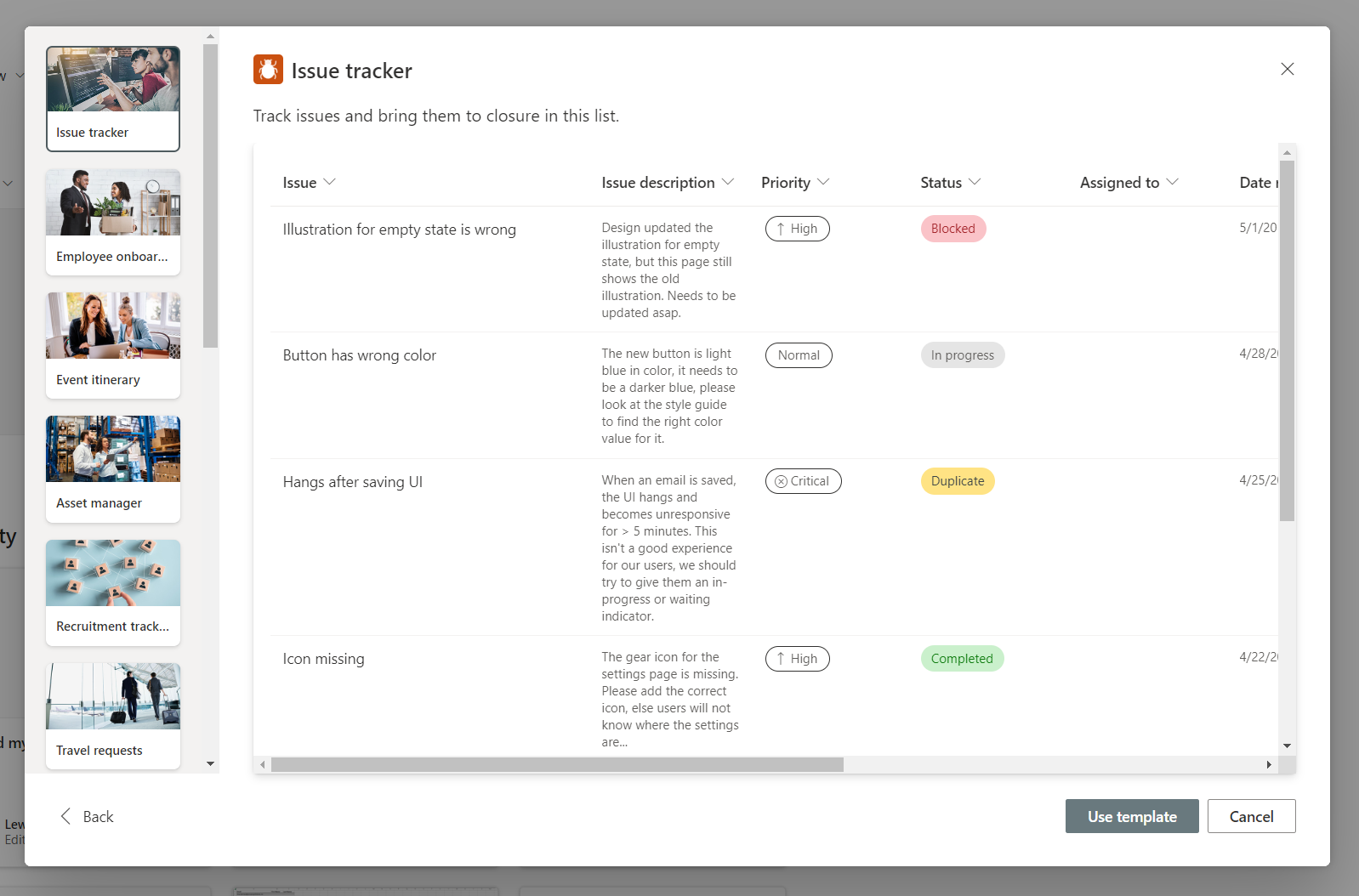
So in SharePoint I’m going to create a list in a site of my choice and I’ll actually use one of the SharePoint list templates, Issues, and I’ll just rename issues to cases.
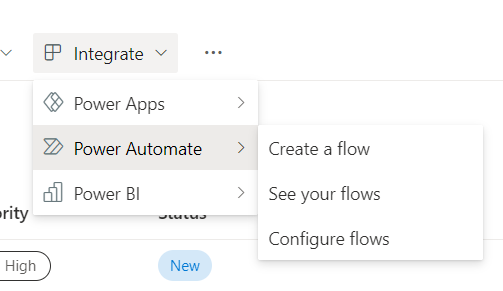
Now I’m going to build a flow that is item triggered in this SharePoint list. To do that I’m going to select Integrate, then Power Automate, then Create a flow.
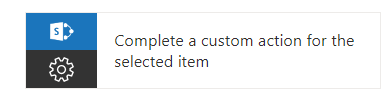
Now I’m going to select the complete a custom action for the selected item template.
I’ll start by clicking this and then i’ll select continue once navigated to Power Automate to continue using the connections displayed to me. Then I’ll just need to add one step which is going to be a HTTP with Azure AD step. Here we only need to act as ourselves so we have user context and delegated permissions / owner permissions to our own content.
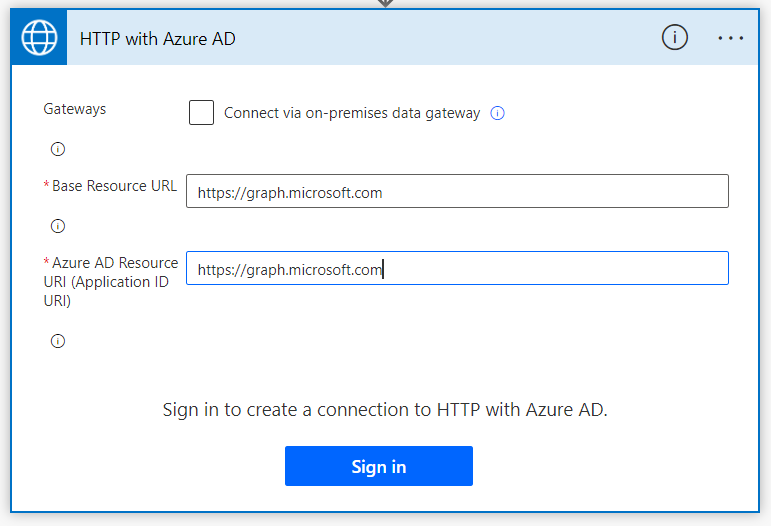
To create our connection with the HTTP with Azure AD connector, use “https://graph.microsoft.com” in both of the inputs and select sign in. You’ll then need to authenticate with SSO. You might be asked to accept and grant access to permissions as a user with the option to do so on behalf of your tenant if you have that level of privilege already.
POST Request
So now let’s work on our POST request towards Microsoft Graph to interact with Microsoft To Do and create a task. We will use the following inputs…
| Parameter | Value |
|---|---|
| Method | Post |
| Request Url | https://graph.microsoft.com/v1.0/me/todo/lists/listid/tasks |
| Body | { Title: “Follow up on @{outputs(‘Get_item’)?[‘body/Title’]}” } |
Parameters and values for Graph Request to create a task in Microsoft To Do
Replace the dynamic content in the body above with your content for the title of your case or list item.
Testing it out
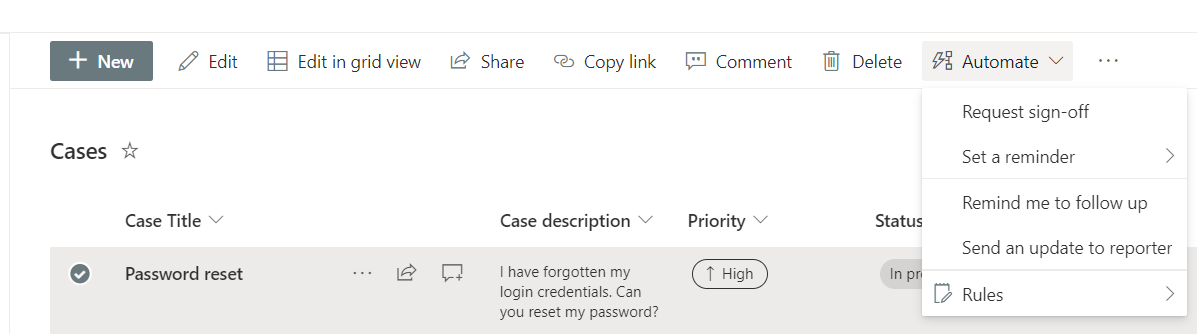
Now let’s test it out. I’m going to go to my cases and select one. I’ll then select automate and then I’ll select my flow which I’ve called Remind me to follow up
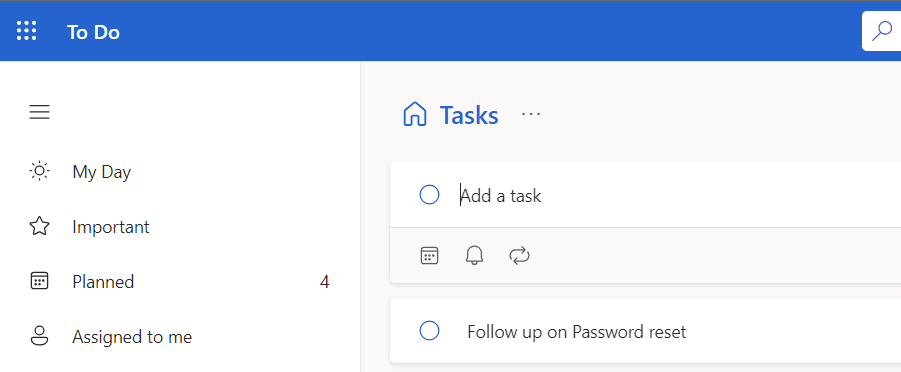
Now if I run the flow, and head over to Microsoft To Do, to see the result, you’ll see that I have my task there reminding me to follow up on this case.
Overview
Now this is just a very simple introductory example of us interacting with Microsoft Graph whilst also having business data present, creating a contextual type action here or an action that interacts with the rest of the Microsoft Cloud and platforms we use on a day to day basis.
In future posts we’ll go over more complex examples utilising GET requests to retrieve contextual data from Microsoft Graph to aide user decisions when interacting with our business apps which also surface business data to users.